PicklesLIVE FAQs
Get answers to your questions on how to buy via Pickles Live.
Simulcast+
Simulcast+ is our new live digital auction format that delivers an enhanced Pickles Live experiences with streamlined automation, in place of a live auctioneer. Instead, a Pickles team member will manage the auction through Simulcast+ tech.
It works like a normal Pickles Live auction, without the live auctioneer. Our Pickles team member will start the lots, set the bid increments and most importantly make the decisions to sell the lots.
During an auction there are visual and audio queues to help guide you through. For example, you’ll hear a beep when bids are placed as well as seeing corresponding text for each audio message.
A timer will move around the bid button that changes colour and starts to flash to let you know when an item is about to be sold.
Experience a Simulcast+ auction in the video attached.Yes, we will continue to have normal Pickles Live sales with live auctioneers.
You sure can, this works exactly the same as a normal PicklesLIVE auction. Discover how to set a max bid.
Please call us 1300 052 392 or via email at info@pickles.com.au. For customer feedback email us at CX@pickles.com.au.
PicklesLIVE
MyPickles is a free platform where you can register to bid for Pickles Live auctions, create product alerts, sign-up for regular auction alerts, manage your profile and your invoices.
To find out how to complete account registration and verification click here to view our create account FAQs.Pickles Live is a powerful online auction service that lets anyone join a physical auction in real-time over the internet.
Our innovative online bidding system allows you to participate online in our live auctions from the comfort of your home or office. Hear the auctioneer’s voice, see images of the vehicles and participate in all the bidding action with a click of a button.To register for a live auction, your account must be fully verified. Navigate to the auction you wish to register for and select the ‘Bid Live’ button.
Max-bid is a feature that allows you to set a predetermined maximum bid for an item before the auction starts. This way you can stay in the game without waiting for the lot you are interested in to appear. This feature allows Pickles Live to bid on your behalf in small increments up to your maximum bid. The Pickles Live bidding systems will always attempt to have the member win the auction at the lowest price possible.
For example, if you’re interested in a car and decide the maximum amount you would spend on this car is $20,000, you can set a max-bid before the auction starts. So once that car has been lotted a few days before the auction, you can set your maximum bid to $20k. When the auctioneer reaches this lot during the live auction, the system will bid up to your set amount on your behalf. You will be notified that bidding has started and if you get outbid. The feature will never bid above the figure you set as your max-bid limit for that item.
For more details about max bid, see our max-bid FAQs.At each auction, a deposit percentage or amount is set. The deposit amount is dependent on the type of auction. Please note: the higher the value of the item, the higher the deposit will be.
Make sure that you are aware of the amount of money you will need before bidding at an auction. The deposit secures the item that you have successfully bid on. Deposit via credit card is the only option on Pickles Live.When a credit or debit card is added to a MyPickles account the card details are validated by the bank charging the card with a $1 pre-authorisation. This amount never progresses into an actual charge on the cardholders' account - it will disappear within 5-7 days. Any time the credit card details are changed or updated on the MyPickles account this pre-authorisation will occur again.
- When using a company network to participate in a Pickles Live auction the firewall needs to be configured to permit outbound connections.
The system requires TCP port 1935 to be open on network firewalls to enable the use of Flash Player audio, and ports 443 and 80 to be open to enable http and https access. To enable audio/video streaming, the following IP addresses may need to be whitelisted - please contact your network administrator for assistance. - 52.62.62.47
- 52.64.204.1
- 54.66.185.151
- 54.79.66.73
- If your company policies do not allow you to download and install Flash Player, sound will not be enabled within Pickles Live. Please contact your IT department for assistance.
- If you are using Internet Explorer and letters are displaying instead of icons in the Item Details section, it is likely that certain fonts are being blocked. The fonts are served from the Velocicast website. The following files may be blocked by your network - please contact your network administrator for assistance.
- ionicons.eot
- pickles-icons.eot
- When using a company network to participate in a Pickles Live auction the firewall needs to be configured to permit outbound connections.
- Your computer must have a sound card installed (see the minimum requirements page). Do not forget to check that your speakers are plugged in and turned on.
- When using the Pickle Live app for the first time, make sure you download Adobe Flash Player to enable the sound by clicking on the red Flash Player icon located on the item image. Follow the instructions to download and install.
- If you are using Firefox or Safari browsers, please restart your browser after installing Flash Player.
- If you are using Chrome browser, a pop-up will display to enable you to Run Flash – click on Allow.
- If you are using Internet Explorer or Edge on Windows version 10, Adobe Flash Player will be pre-installed. If you are running an older version of Windows, you may need to download and install Flash Player manually.
The auction has not started yet. Once it has begun you will be able to hear sounds and the pictures of the item will change. Click the Refresh option on the bidding page if you believe your screen has frozen.
You should be aware that appropriate processing and bidding fees will be added to your item purchase price.
Check processing and bidding fees.If the incident occurs in the first 20 minutes of the auction and the problem has not been resolved please contact our Customer Contact Centre on 1300 052 392.
Get the most out of Simulcast+
Maximise your time on our Simulcast+ platform with these helpful tips:
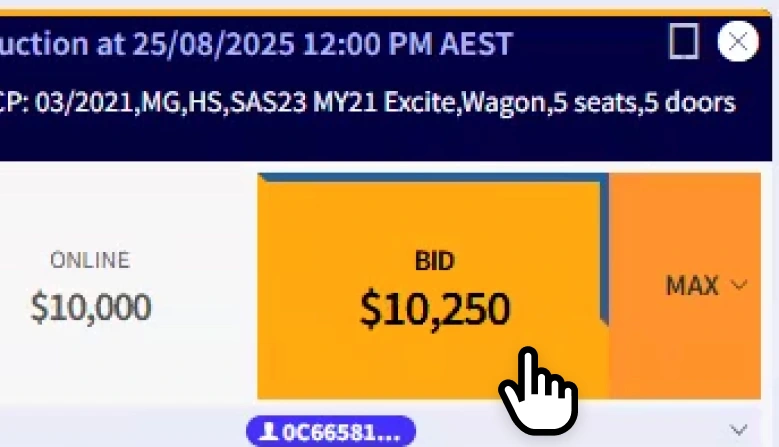
Animated bidding cues
Bid early while the timer is still blue – if it flashes red you may miss your chance to bid!
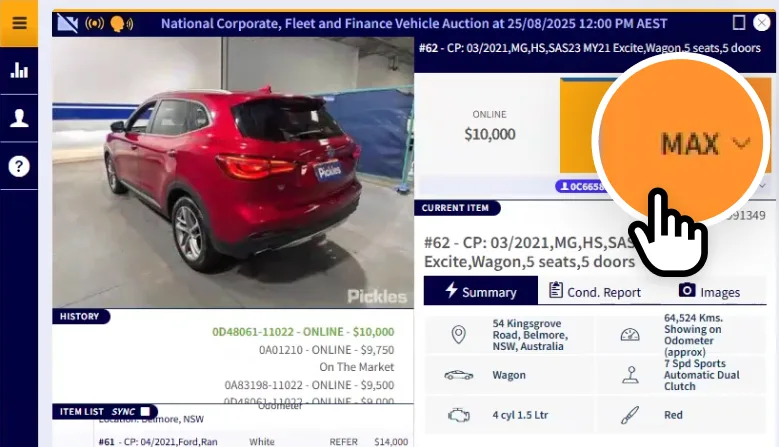
Stay one step ahead
Set your “Max Bids” before the sale on the Pickles website or during the sale directly in PicklesLIVE to make sure you don't miss out!
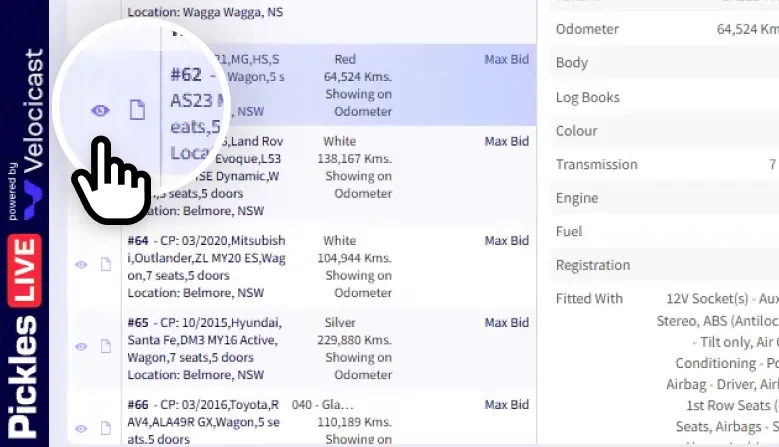
Get notified
You can add the lots you are interested into your watchlist on the Pickles website. These will automatically become “watch” items in PicklesLIVE for you. Then as the lot is about to start you will get a notification.
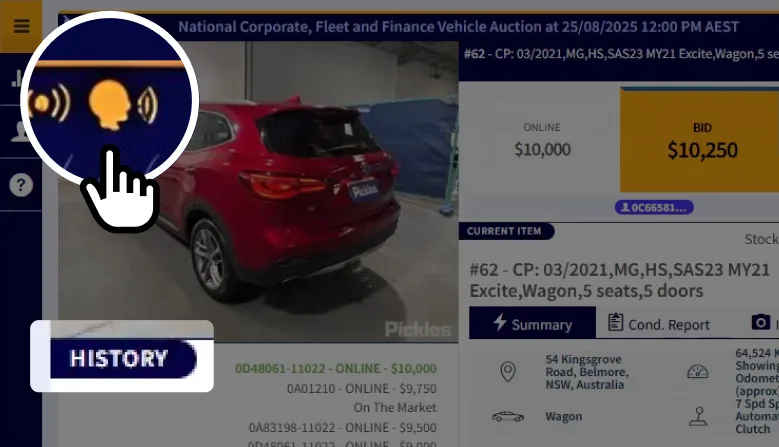
Tailor your experience
You can control the audio by clicking on the head in the top left-hand corner of the window. With the sound off, you can keep an eye on the History for visual updates. If music is playing, you can turn it off by click on the flashing icon next to the head icon.
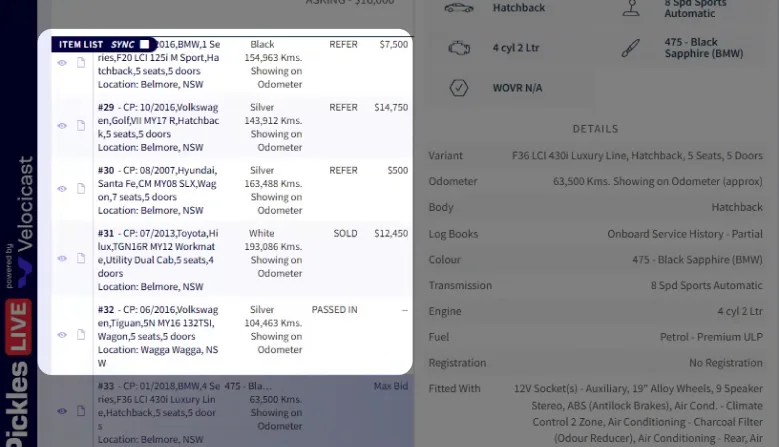
Compare & prepare
For lot results for assets that have already been on the block, scroll up in the Item List. That will tell you what the final bid amount was and the status.
Can't find what you are looking for?

Contact Us
Got questions?
Contact our team for auction, vehicle, equipment, salvage, and general enquiries at 1300 052 392.

Email us
Have enquiries about Pickles?
Reach out to us at info@pickles.com.au.